Notifications system
LemonLDAP::NG can be used to notify some messages to users. If a user has got some messages, they will be displayed when he access to the portal. If a message contains some check boxes, the user has to check all of them else he can not access to the portal and retrieves his session cookie.
A notification explorer is available in Manager, and notifications can be set for all users, with possibility to use display conditions. When the user accept the notification, notification reference is stored in his persistent session.
Installation
Activation
To activate notifications system:
Go to Manager General Parameters » Plugins » Notifications » Activation
or in lemonldap-ng.ini [portal] section:
[portal]
notification = 1
Public notifications
Public notifications allows to display a carousel of messages to all users on the login page. This plugin uses the Notification , they will be displayed when he access to the portal.
Disabled by default, you just have to activate it in the
Manager (General Parameters » Plugins » Notifications »
Public Notifications)
or in lemonldap-ng.ini [portal] section:
[portal]
notificationsExplorer = 1
publicNotification = 1
Usage
When enabled, create a notification for a “public” recipient. There are 3 types of public recipients, “public-info”, “public-warn”, “public-error”. Each will be displayed with a different color (respectively blue, yellow and red).
Examples
JSON
[{
"uid": "public-info",
"date": "2009-01-27",
"reference": "ABC",
"title": "Application Maintenance",
"subtitle": "Application 1",
"text": "Application 1 is scheduled to be in maintenance from 9am to 10 am and won't be available",
},
{
"uid": "public-error",
"date": "2009-01-27",
"reference": "ABC",
"title": "Application Maintenance",
"subtitle": "Application 1",
"text": "Application 1 is scheduled to be in maintenance from 9am to 10 am and won't be available",
},
{
"uid": "public-warn",
"date": "2009-01-27",
"reference": "ABC",
"title": "Application Maintenance",
"subtitle": "Application 1",
"text": "Application 1 is scheduled to be in maintenance from 9am to 10 am and won't be available",
}] # No comma at the end
Explorer
Notifications explorer allows users to see and display theirs accepted
notifications. Disable by default, you just have to activate it in the
Manager (General Parameters » Plugins » Notifications » Explorer)
or in lemonldap-ng.ini [portal] section:
[portal]
notificationsExplorer = 1
By default, just the last three notifications are displayed. You can
modify this by editing lemonldap-ng.ini [portal] section:
[portal]
notificationsMaxRetrieve = 3
Usage
When enabled, /mynotifications URL path is handled by this plugin.
Attention
Listed notifications are extracted from users persistent session (notification reference and accepted date). ONLY notifications that explorer can find in notifications backend are available to be displayed. Notifications content (title, subtitle and so on…) is not stored into persistent session.
Storage
By default, notifications will be stored in the same database as configuration:
if you use “File” system and your “dirName” is set to /usr/local/lemonldap-ng/conf/, the notifications will be stored in /usr/local/lemonldap-ng/notifications/
if you use “CDBI” or “RDBI” system, the notifications will be stored in the same database as configuration and in a table named “notifications”.
if you use “LDAP” system, the notifications will be stored in the same directory as configuration and in a branch named “notifications”.
You can change default parameters using the “notificationStorage” and “notificationStorageOptions” parameters with the same syntax as configuration storage parameters. To do this in Manager, go in General Parameters > Plugins > Notifications.
File
Parameters for File backend are the same as File configuration backend.
Attention
You need to create yourself the directory and set write access to Apache user. For example:
mkdir /usr/local/lemonldap-ng/notifications/
chown www-data /usr/local/lemonldap-ng/notifications/
Tip
The file name default separator is _, this can be a
problem if you register notifications for users having _ in their
login. You can change the separator with the fileNameSeparator
option, and set another value, for example @.
To summary available options:
dirName: directory where notifications are stored.
fileNameSeparator: file name separator.
DBI
Parameters for DBI backend are the same as DBI configuration backend.
You can find the database schema in /usr/share/lemonldap-ng/ressources/notifications.*.sql.
To summary available options:
dbiChain: DBI connection.
dbiUser: DBI user.
dbiPassword: DBI password.
dbiTable: Notifications table name.
Note
DBI configuration example:
notificationStorage = DBI
notificationStorageOptions={  \
    'dbiChain'    => 'DBI:Pg:dbname=llng;host=mydb;port=5432', \
    'dbiTable'    => 'notifications', \
    'dbiUser'     => 'user', \
    'dbiPassword' => 'qwerty', \
}
LDAP
Parameters for LDAP backend are the same as LDAP configuration backend.
Note
More than one server can be set here separated by spaces or commas. They will be tested in the specified order.
To use StartTLS, set
ldap+tls://serverand to use LDAPS, setldaps://serverinstead of server name.If you use StartTLS or LDAPS, you can set any of the Net::LDAP start_tls() options in the URL, such as
ldap+tls://server/verify=noneorldaps://server/cafile=/etc/ssl/ca.pem&sslversion=tlsv1_2. You can also use cafile and capath parameters.
Attention
You have to create the branch by yourself
To summary available options:
ldapServer: LDAP URL
ldapBindDN: LDAP user
ldapBindPassword: LDAP password
ldapClientCert: Client certificate
ldapClientKey: Client private key
ldapConfBase: Notifications branch DN
Note
LDAP configuration example:
notificationStorage = LDAP
notificationStorageOptions={  \
    'ldapServer'       => 'ldap://localhost', \
    'ldapBindDN'       => 'cn=manager,dc=example,dc=com', \
    'ldapBindPassword' => 'secret', \
    'ldapConfBase'     => 'ou=notifications,ou=applications,dc=example,dc=com', \
    'ldapClientCert'   => '/path/to/certicate.pem',
    'ldapClientKey'    => '/path/to/private.key'
}
Wildcard
The notifications module uses a wildcard to manage notifications for all
users. The default value of this wildcard is allusers, but you can
change it if allusers is a known identifier in your system.
To change it, go in General Parameters > Plugins >
Notifications > Wildcard for all users, and set for example
alluserscustom.
Then creating a notification for alluserscustom will display the
notification for all users.
Using notification system
Notification format
Notifications are JSON files containing:
<notification> element(s) :
Required attributes:
date: creation date (format YYYY-MM-DD WITHOUT time!)
ref: a reference that can be used later to know what has been notified and when (Avoid
_character)uid: the user login (it must correspond to the attribute set in whatToTrace parameter, uid by default), or the wildcard string (by default:
allusers) if the notification should be displayed for every user.
Optional attributes:
condition: condition to display the notification, can use all session variables.
Sub elements:
<title>: title to display: will be inserted in HTML page enclosed in <h2 class=”notifText”>…</h2>
<subtitle>: subtitle to display: will be inserted in HTML page enclosed in <h2 class=”notifText”>…</h2>
<text>: paragraph to display: will be inserted in HTML page enclosed in <p class=”notifText”>…</p>
<check>: paragraph to display with a checkbox: will be inserted in HTML page enclosed in <p class=”notifCheck”><input type=”checkbox” />…</p>
Attention
All other elements will be removed including HTML elements like <b>.
Tip
Several notifications can be inserted with a single request by using an array of JSON (Tested with an array of 10,000 elements)
Variables
You can use session variables in notifications’s text field by using the $varname syntax.
Note that complex Perl expressions are not allowed, only simple variable interpolation.
This feature is only available when using JSON notifications.
Examples
JSON
[{
"uid": "foo",
"date": "2009-01-27",
"reference": "ABC",
"title": "You have new authorizations",
"subtitle": "Application 1",
"text": "You have been granted to access to appli-1",
# An array is required to set multi checkboxes
"check": [
  "I agree",
  "Yes, I'm sure"
]
},
{
"uid": "bar",
"date": "2009-01-27",
"reference": "ABC",
"title": "You have new authorizations",
"subtitle": "Application 1",
"text": "You have been granted to access to appli-1",
"check": "I agree"
}] # No comma at the end
Tip
Notifications are displayed sorted by date and reference
Create new notifications with notifications explorer
In Manager, click on Notifications and then on the Create button.
Then fill all inputs to create the notification. Only the condition is not mandatory.
When all is ok, click on Save.
Notification server
LemonLDAP::NG provides a REST server.
If enabled, the server URL is https://auth.your.domain/notifications.
Notification server provides three API to insert (POST), delete (DELETE) or list (GET) notification(s).
Available options:
Server: Enable/Disable notification server
Default condition: Condition appended to ALL notifications inserted by notification server (JSON format only)
Notification parameters to send: Notifications parameters returned by
GETmethodHTTP methods: Enable/Disable HTTP methods
Attention
If notification server is enabled, you have to protect this URL by using the web server because there is no authentication required to use it.
Example:
# REST functions for insert/delete/list notifications (disabled by default)
<LocationMatch ^/(index\.fcgi/)?notifications>
    Require ip 192.168.2.0/24
</LocationMatch>
Notifications through REST
Insertion example with REST API
You just have to POST json files.
For example with curl:
curl -X POST -H "Content-Type: application/json" -H "Accept: application/json" -d @notif.json http://auth.example.com/notifications
Deletion example with REST API
For example with curl:
curl -X DELETE -H "Content-Type: application/json" -H "Accept: application/json" http://auth.example.com/notifications/<uid>/<reference>
List example with REST API
For example with curl:
# Retrieve 'wildcard' notifications
curl -X GET -H "Content-Type: application/json" -H "Accept: application/json" http://auth.example.com/notifications

# Retrieve all pending notifications
curl -X GET -H "Content-Type: application/json" -H "Accept: application/json" http://auth.example.com/notifications/_allPending_

# Retrieve all existing notifications
curl -X GET -H "Content-Type: application/json" -H "Accept: application/json" http://auth.example.com/notifications/_allExisting_

# Retrieve all <uid>'s notifications
curl -X GET -H "Content-Type: application/json" -H "Accept: application/json" http://auth.example.com/notifications/<uid>

# Retrieve <uid>/<reference> notification parameters
curl -X GET -H "Content-Type: application/json" -H "Accept: application/json" http://auth.example.com/notifications/<uid>/<reference>
Test notification
You’ve just to insert a notification and connect to the portal using the same UID. You will be prompted.
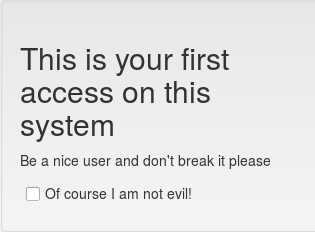
Try also to create a global notification (to the uid “allusers”), and connect with any user, the message will be prompted.
JSON response
If a notification is pending, JSON response fields are:
result:0error:36ciphered_id: a ciphered session id is returned in this field. This id can be used to forward and continue the notification process if you call the REST/notifbackendpoint with a LemonLDAP::NG cookie built with this id.